
Want to write formulas faster? Here is a quick tip.
Use Auto-correct!
That is right. Excel’s auto-correct feature can be setup to help you write formulas faster. See a demo below:
Here is how:
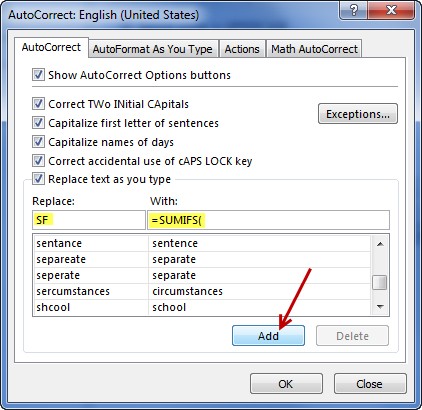
- Go to File > Options (in older versions, office button > options)
- Select Proofing

- Click on AutoCorrect Options
- Add auto correct rules for typing formulas like this:
- VL -> =VLOOKUP(
- SF -> =SUMIFS(
- etc.
- Done.
Now, whenever you type VL in a cell, Excel immediately puts the VLOOKUP formula and asks you for extra inputs. Same with other formulas you create.
Caution: Make sure you are not replacing any common 2/3 letter words. For example if you set up a rule to replace IN with =INDEX(, then you might get unexpected replacements when typing the word IN.
Additional tips:
- In case the replacement is not needed, press CTRL+Z to revert to original word.
- Replacement rules are case sensitive. So vl will not replaced by VLOOKUP, only VL will.
How do you speed up formula writing?
Often when running a class or demonstrating something in Excel, people ask me, “How come you are writing formulas so much faster?”. Here are the tricks I use,
- I use auto complete (that little drop down in cell with all formulas) as much as possible
- I use keyboard shortcuts to select ranges, names or access input values for the formulas
- I am good with typing.
What about you? What tricks & ideas do you use to type formulas faster? Please share in the comments area.
More on formula writing
Here are few more articles to help you write better formulas.
- Move the formula help box with mouse to see what you need
- Replace formulas with values
- Use CTRL+Enter to type same values or formulas into multiple cells
- Fill blank cells in a table with above value
- More on Excel formulas
PS: Thanks to John Long who taught me this tip.


